How to use Warden
From installing to a phone that rings when you're attacked. Every page of the app is explained below with a screenshot. Inside Warden, the ? button at the top-right of each page shows the same tips.
Install
Download
Get Warden-Setup.exe (Windows 10 & 11, 64-bit).
Run the installer
No admin rights needed. If Windows says "Windows protected your PC", click More info → Run anyway. This shows for new apps that aren't yet widely downloaded.
Open Warden
No card, no sign-up. The badge at the bottom-left shows TRIAL · 7d left. Your 7 days start the first time Warden connects to the game (next step).
Connect to the game
Warden needs to be logged in to your Imperia Online account. The easiest way is to share the session your browser already has: with the Warden Connect browser extension in one click, or by copying its cookie.
The one-click way: Warden Connect (recommended)
Warden Connect is a small extension for Chrome, Edge, Brave and Firefox. It hands your browser's game session to Warden on the same PC, so the app and the browser share one session and you can keep playing while Warden works. Nothing to copy.
Add to Chrome Add to Edge Add to Brave Add to Firefox
Add the extension
Install Warden Connect with the button for your browser above (Chrome, Edge and Brave: Chrome Web Store, Firefox: Firefox Add-ons). Warden must be installed on the same PC.
In Edge: Edge installs it from the Chrome Web Store too. The first time, Edge shows a bar at the top of the page: click Allow extensions from other stores → Allow, then Get → Add extension.
Open the game
Go to imperiaonline.org, log in, and enter the world you want Warden to play.
Click Connect Warden
Click the Warden shield in the browser's toolbar (it may be under the puzzle-piece icon) and press Connect Warden. If Warden isn't open, it starts by itself. The popup shows the world Warden connected to.
Reconnect by itself: with this switch on (it is by default), when the game logs you out and you log in again in the browser, Warden takes the new session as soon as the game opens. It doesn't replace a session that still works, so a second account you play in the browser never takes Warden away from its own.
The cookie way (by hand)
Your browser keeps your game session in a cookie called PHPSESSID. When you give it to Warden, the app and the browser share one session, so you can keep playing in the browser while Warden works.
Open the game in your browser
Go to imperiaonline.org in Chrome or Edge, log in, and enter the world you want Warden to play.
Open the developer tools
Press F12 (or Ctrl+Shift+I). A panel opens at the side or the bottom of the page.
Find the cookie
Click the Application tab. It may be hidden behind ». On the left, open Cookies and click the imperiaonline.org entry. In the list, find the row named PHPSESSID.
ElementsConsoleSourcesNetworkApplication»Storage▸ Local storage▸ Session storage▾ Cookieshttps://www.imperiaonline.orgName Value Domain _ga GA1.2.1234567890… .imperiaonline.org PHPSESSID 1a2b3c4d5e6f7a8b9c0d1e2f3a4b5c6d www.imperiaonline.org lang en www.imperiaonline.org Illustration. Your value is different and looks like a long string of letters and numbers.
Copy its value
Double-click the Value of the PHPSESSID row and press Ctrl+C.
Paste it into Warden
In Warden, click Connect in the world box at the top of the sidebar (or account menu → Connect your game…). Paste with Ctrl+V and press Connect.
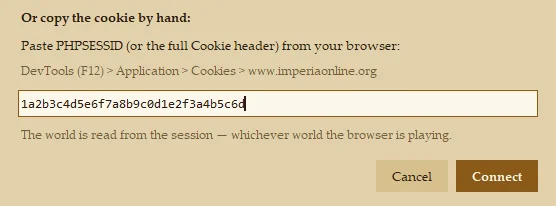
Done
The world box shows your world with a green ● online. Warden reads the world from the session, so it plays whichever world the browser was in. Next time you open Warden it reconnects with the same cookie by itself.
Firefox: press F12 → Storage tab → Cookies → imperiaonline.org → PHPSESSID.
When it expires: if you log out in the browser, or the game ends the session, Warden says "The last session has expired". Repeat steps 1–5 with the new cookie.
The password way
Account menu (bottom-left) → Log in…. Pick your world, enter your username and password, and Warden logs in by itself. Your password is kept encrypted in Windows Credential Manager. It never leaves your PC. A password login starts a new session, so a browser playing the same world gets logged out.
Find your way around
- Always on top
- Under the Warden name: click it and Warden stays over every other window — the browser with the game too — even when you click on them. Click again to turn it off.
- World box
- Top-left: the world you're playing, its name, and online / offline. The Connect button connects your game (Warden Connect or a browser cookie).
- Sidebar
- The pages, in groups: Dashboard and Attacks on top, then Automations (Economy, Alarm), Army (NPCs, Attack Player, Relocation, Train Army) and Intel (Watch Player, Spy Trade Posts). A green dot means something is switched on there, and Attacks shows how many attacks on you are incoming.
- Tabs
- Bigger pages are split into tabs at the top (for example Economy, Alarm, NPCs), so each tab fits the window. The mouse wheel scrolls whatever is under the mouse.
- Account menu
- Your name at the bottom-left: log in / out, Switch world…, Connect your game…, change or forget the saved login, Language, Getting started… and Invite friends….
- Licence badge
- Under the account menu: TRIAL · days left or PRO. Click it to subscribe, enter a key or manage your subscription. See Licence.
- Activity
- Bottom right of the window: click it to open the list of everything Warden did since it started, in green (done), orange (warning) or red (error). The latest line also shows in the status bar.
- ? button
- Top-right of every page: slides in How this page works from the right. It's bronze until you've opened it once.
- ⓘ
- Rest the mouse on a small ⓘ next to a setting to see what it does.

Dashboard
Everything Warden runs in one place, so you can see at a glance what is on and what runs next.
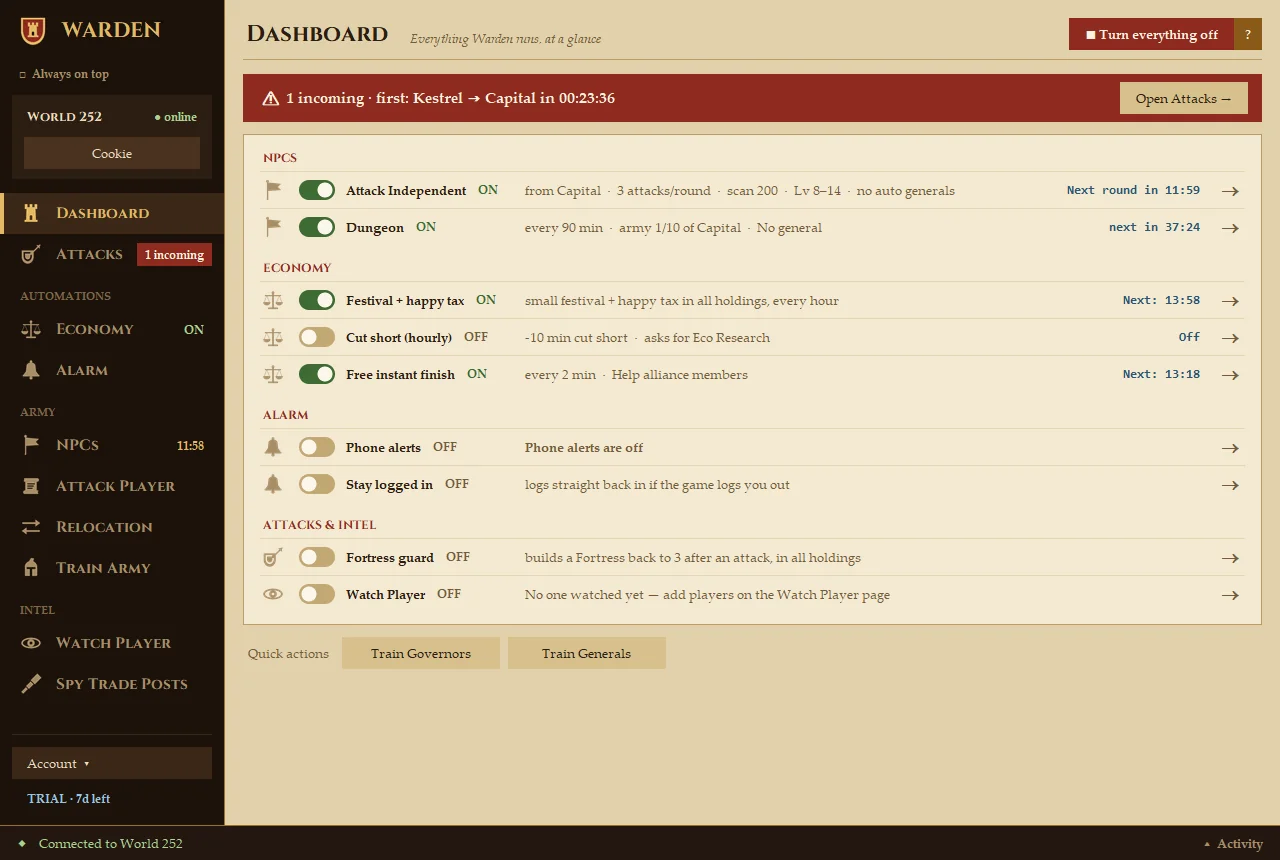
- One row per automation
- Grouped like the sidebar: NPCs (NPC attacks, Dungeon), Economy (Festival + happy tax, Cut short, Free instant finish), Alarm (Phone alerts, Stay logged in) and Attacks & intel (Fortress guard, Watch Player). Each row has its switch, a summary of its settings such as every 90 min · army 1/5 of Capital, and when it runs next.
- →
- Opens that automation's page, on the tab where its settings are.
- Red bar
- While attacks on you are incoming, a red bar on top shows the first one. Click it for the Attacks page.
- Quick actions
- One press: Train Governors / Train Generals.
- Turn everything off
- Switches every automation off at once, Phone alerts and Stay logged in included.
Each switch is the same one as on its own page: turning it on here or there is the same thing.
Each world remembers which switches were on. When Warden connects to it (at start, with the cookie or your password) they turn back on, so a restart or an update picks up where you left off. A world you haven't automated yet starts with everything off. The phone alarm watches one world at a time: turning it on in one world turns it off for the others.

Attacks & Missions
Armies on the move: attacks on you and your alliance, and your own missions.
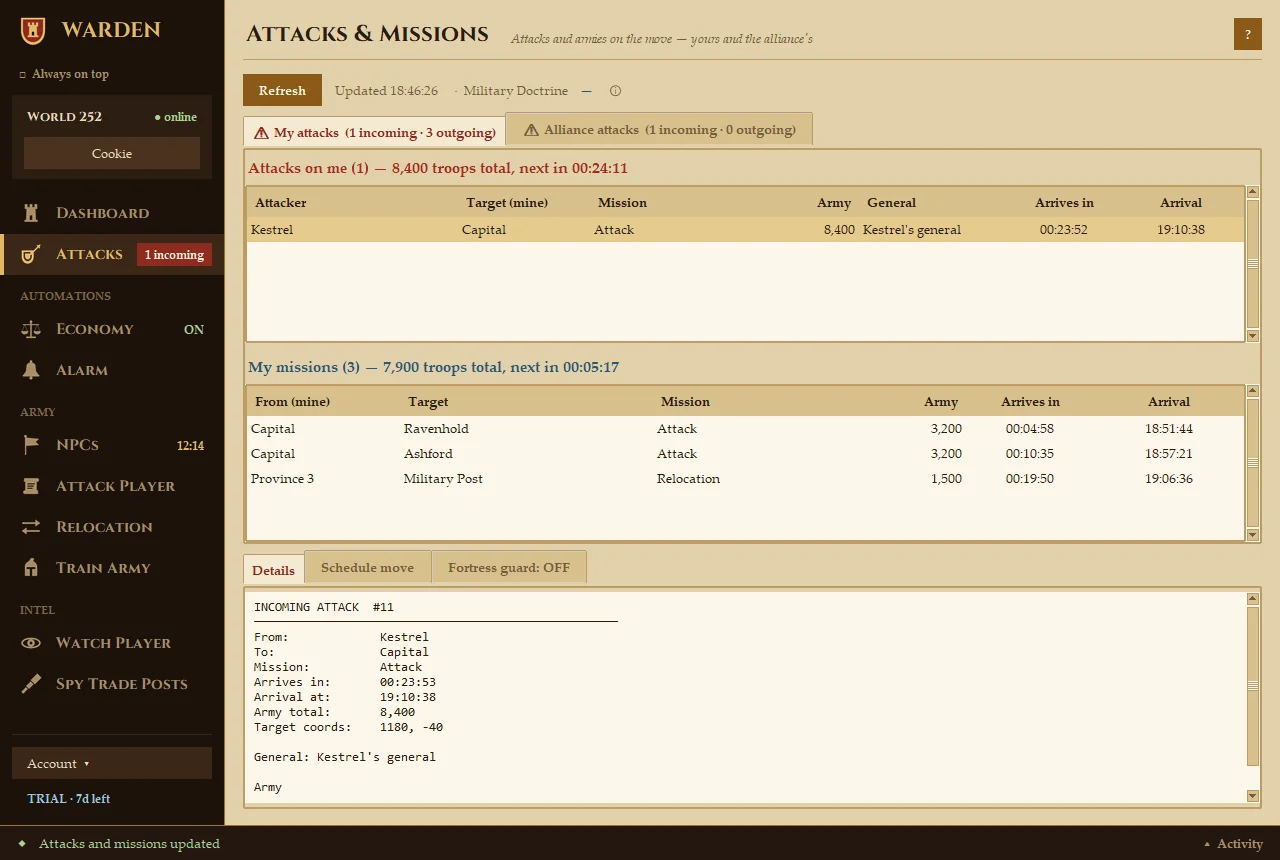
- My attacks / Alliance attacks
- Two tabs. Each shows attacks coming in (red) and missions going out, with troop totals and the time to the next arrival.
- Arrives in · Arrival
- Live countdown to each arrival, and the clock time it lands.
- Details
- Click a row to see its full details below.
- Refresh
- Loads the list. It refreshes by itself while the alarm is on.
- Schedule move
- Click one of your (or your alliance's) missions, choose a holding and press Schedule move. The moment the army lands in your holding — where the mission goes, or back home after an attack — it moves on to that holding. Only the arriving army takes just the troops of that mission; arriving + already there takes the holding's whole field army (the garrison stays). Scheduled moves end when Warden closes.
- Fortress guard
- For all your holdings. A siege that gets through takes the Fortress down one level. When an attack could take a Fortress below 3, Warden watches it right after the landing; the moment it's at 2, it builds it back to 3 and presses the free instant finish. Never diamonds: if the free finish isn't offered, the Fortress just keeps building.

Economy
Everything that grows your realm, in four tabs: Automations, Special resources, Governors & generals and Boosters & shop.
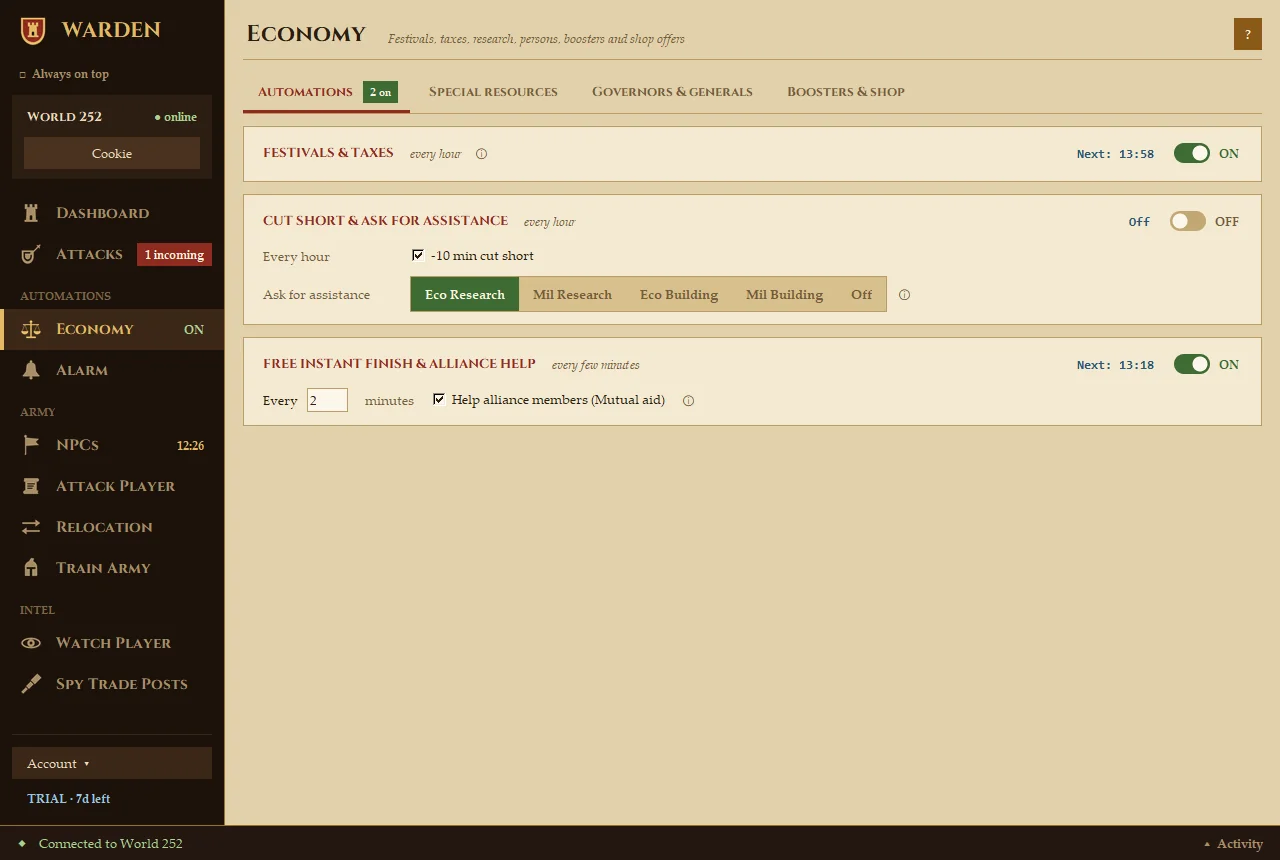
Automations
- Festival + happy tax
- When on: holds a small festival (gradual effect) in all holdings when the game offers it, and sets the happy tax in all holdings. Runs when you switch it on, then every hour.
- Cut short (hourly)
- When on, every hour: uses the free −10 min, asks your alliance for assistance in the queue you pick (Eco Research, Mil Research, Eco Building, Mil Building or Off).
- Free instant finish
- When on, every few minutes (you set how many): presses the free Instant construction for everything in progress, and helps every ally who's asking (Mutual aid) if that's ticked. The paid finish button (diamonds) is never pressed.
Special resources
- Scan
- Scans the map for special resources around you and shows who holds them, with bonus, owner, alliance and distance.
Governors & generals
- Train Governors / Generals
- Spends every pending level-up. Talent ranking opens your order of talents. The top 5 are your priority talents, and Warden picks by that list.
- Gem train
- Quick 1-hour trainings, each started and finished at once with diamonds. It's the one part of Economy that spends diamonds, and its card says so.
Boosters & shop
- Boosters
- Fetch lists the time items you own. Use ticked / Use all spends them on the queues in progress. Items only, never diamonds.
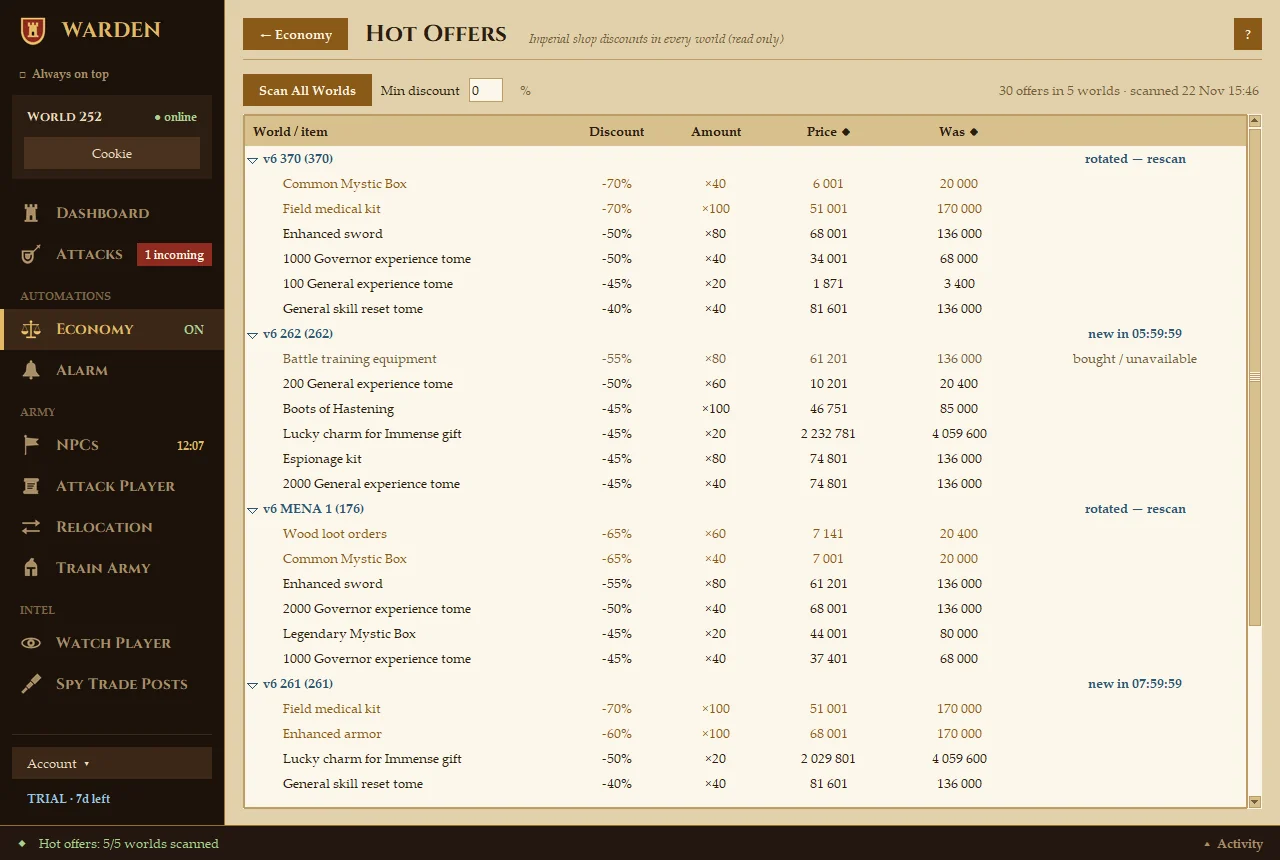
- Imperial shop
- Hot Offers → shows the shop discounts of every world side by side. Nothing is bought. Scan All Worlds logs into each world in turn with your password, which logs your browser out. Warden reconnects to your world at the end.

Attack Alarm
Your phone rings or buzzes when you or your alliance get attacked. It works while Warden is open and logged in.
- Phone alerts
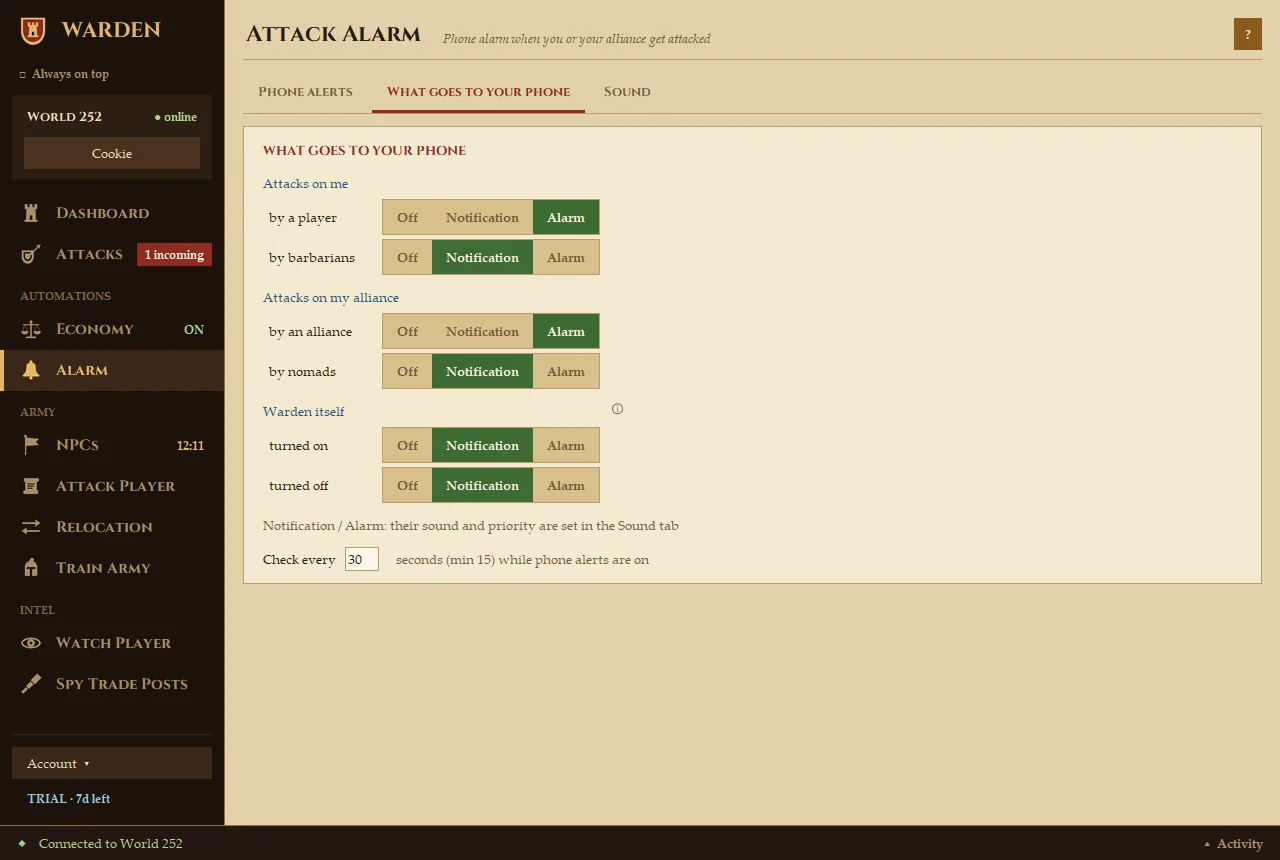
- First tab. Switches watching on. Warden checks for attacks every Check every seconds (at least 15).
- Stay logged in
- For when you leave the PC. If the game logs you out, Warden logs straight back in (with the cookie, else your saved password, which logs out a browser session) and keeps the PC from sleeping. The screen can still turn off.
- What goes to your phone
- Second tab. For each kind of attack (on you by a player or by barbarians, on your alliance by an alliance or by nomads), choose Off, Notification or Alarm. You can also be told when Warden itself turns on or off.
- Sound
- Third tab: the priority and sound of each kind of push, with a Test button.
- Phone settings
- Pick the app that receives the alerts and enter its key (see below).
Set up your phone
Open ⚙ Phone settings and choose one:
- ntfy · Android · free
-
1. Install ntfy from Google Play.
2. Scan the QR code Warden shows with the phone camera, or in ntfy tap + and type the topic (server ntfy.sh).
3. Make it a real alarm: in ntfy, Settings → turn on Keep alerting for highest priority, so it rings until you swipe it.
4. To ring in Do Not Disturb: Android Settings → Apps → ntfy → Notifications → Max priority → allow Override Do Not Disturb.
5. Press Test alarm.
Anyone who knows the topic can read your alerts, so keep it random (New random topic). - Bark · iPhone · free
-
1. Install Bark from the App Store and allow notifications.
2. Copy the URL shown on Bark's main screen (https://api.day.app/…) and paste it into Warden. The key alone works too: it's the short code right after api.day.app/. Don't use the Device Token or the GitHub Run ID from Bark's settings.
3. Press Test alarm. It rings for 30 s and is re-sent every 30 s until you tap the notification.
To ring in silent mode and Do Not Disturb too, tick Ring even in silent mode (Critical Alert) in Phone settings and turn on iPhone Settings → Notifications → Bark → Critical Alerts. - Pushover · paid
- Android and iPhone. 30-day free trial, then a one-time $5 per platform in the Pushover app. Enter your User key (pushover.net, after logging in) and an App token (pushover.net/apps/build). Emergency priority repeats every 30 s for up to an hour until you tap it.

NPCs
NPC cities and barbarian camps. Auto attack and Auto dungeon run by themselves while Warden is open; Manual attack is for targets you pick yourself.
Auto attack
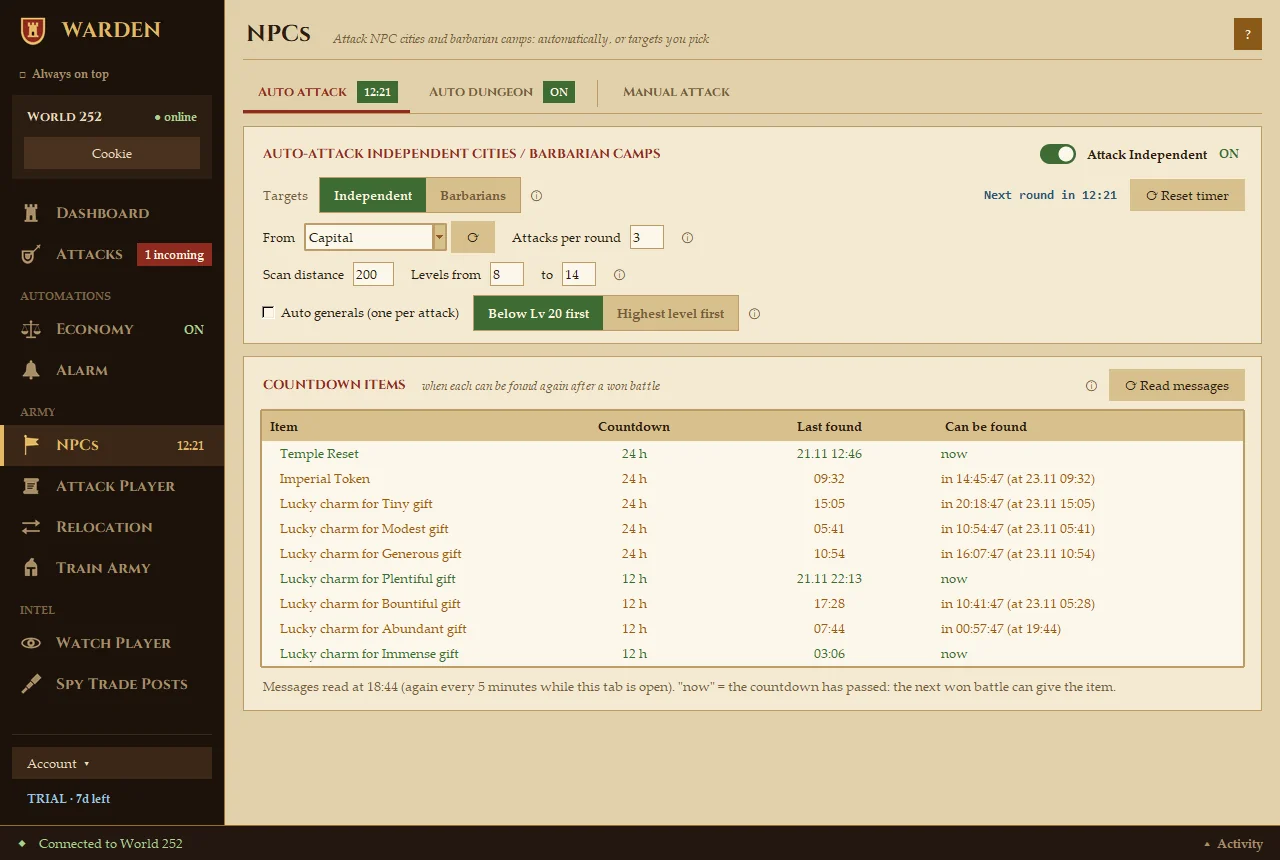
- NPC attacks: ON / OFF
- Starts the rounds. Each round waits until the last army is back home, rescans the map up to the scan distance, then hits the nearest targets, skipping ones stronger than each attack's share.
- Independent / Barbarians
- Which kind of target. Each keeps its own settings, and the switch shows the chosen one's.
- Next round · Reset timer
- Countdown to the next round. Reset starts it from now.
- From
- The holding the army leaves from. ⟳ reloads the list.
- Attacks per round
- The army is split equally between this many targets.
- Scan distance · Levels
- How far to look, and the level range to attack. Leave a level box blank for no limit.
- Auto generals
- Puts a general at the head of each attack: Below Lv 20 first (to level them up) or Highest level first.
- Countdown items
- After a won battle the game can give a Temple Reset, an Imperial Token or a lucky charm. Once one is found, the same item can't be found again until its countdown has passed: 24 hours for the Temple Reset, the Imperial Token and the charms for a Tiny, Modest and Generous gift; 12 hours for the charms for a Plentiful, Bountiful, Abundant and Immense gift. The card shows each item's countdown, when it was last found and when it can be found again (now in green). Warden reads the finds from the game's Messages › Other every 5 minutes while this tab is open, in any of the game's 12 languages; ⟳ Read messages reads them right away.
Auto dungeon
- Dungeon: ON / OFF
- Sends part of the Capital's field army into the dungeon, then again every Every minutes. It's always sent from the Capital.
- Army size
- The share of the Capital's field army to send, for example 1/5.
- General
- Who leads it. If that general is busy, the next one down leads.
Manual attack
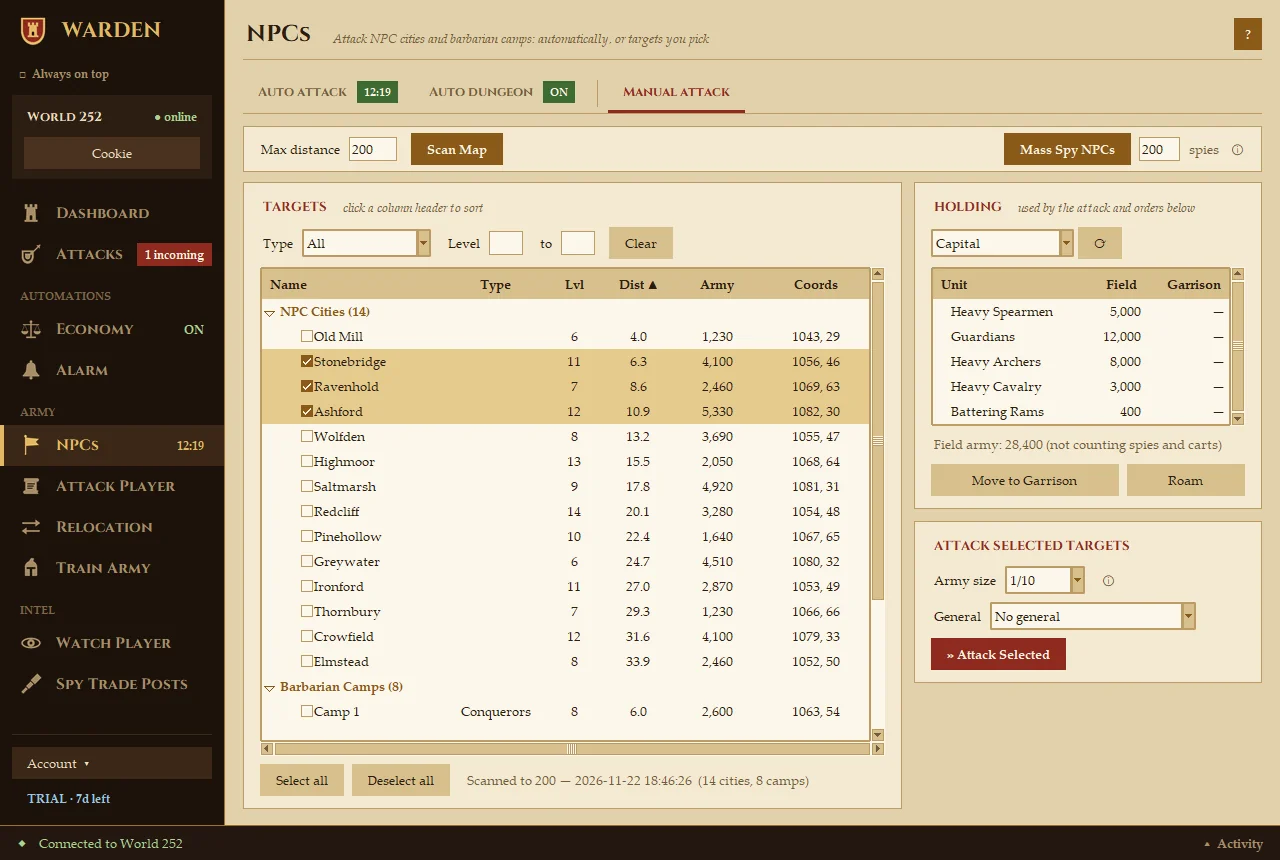
- Scan Map
- Loads every NPC city and barbarian camp up to Max distance. The last scan is kept, so you don't need to rescan every time.
- Mass Spy NPCs
- In the bar at the top, beside the scan. Sends one spy each to the nearest NPC cities of the last scan, from the Capital. You only need it once, to complete the in-game achievement.
- Targets
- Filter by Type and Level. Click a column header to sort by name, level, distance, army or coordinates.
- Holding
- Pick the holding to work with. You see only its army (field and garrison, unit by unit), and the attack uses it. ⟳ reloads the army. Move to Garrison puts its field army into the garrison, Roam sends it roaming.
- Attack Selected
- Tick one target or several, pick the Army size and the General, then press it. That share of the holding's field army is split evenly across the targets; if the general is busy, the next one down leads.

Attack Player
Find every holding of any player on the map, save attacks with their own army and general, and send them now or at a set time. Three tabs: Saved attacks, New attack (Edit attack while you change one) and Scheduled.
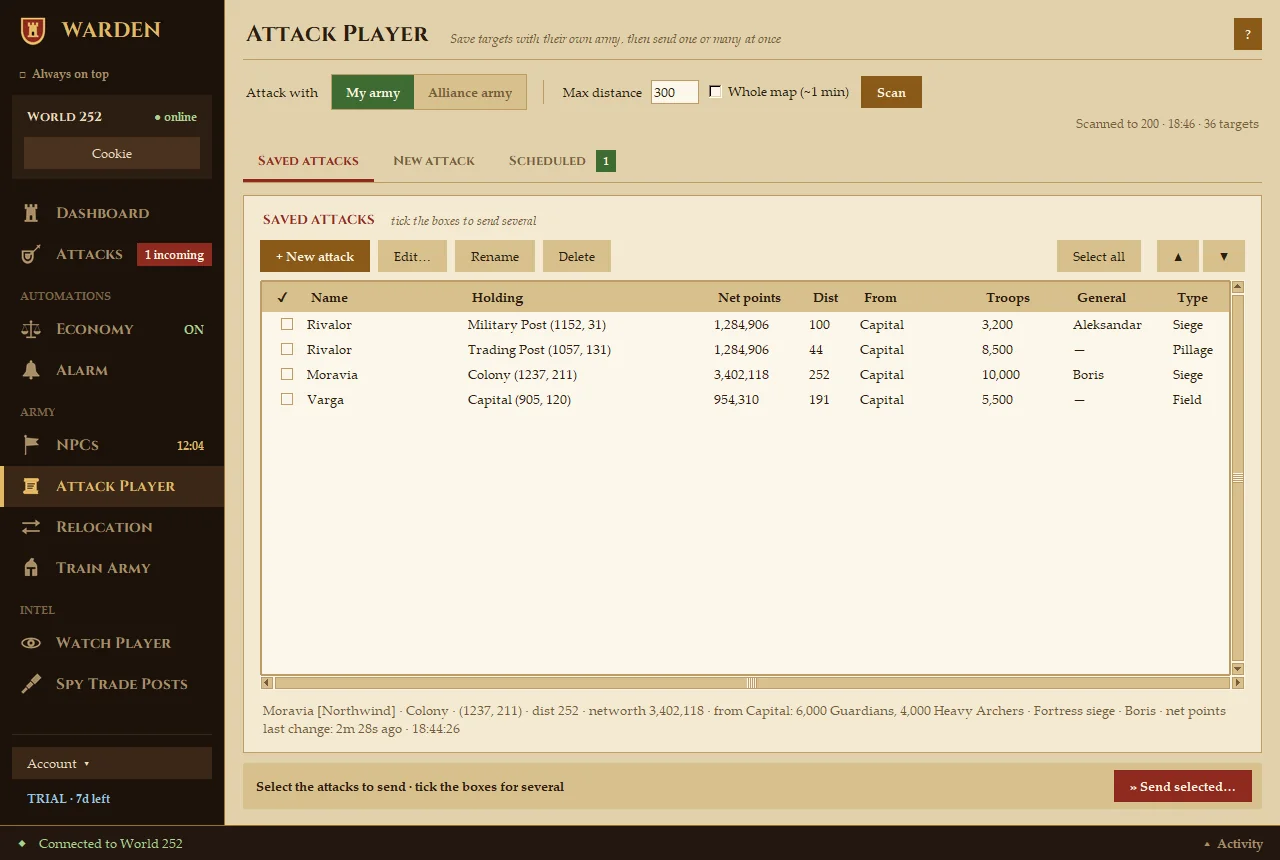
- Attack with
- My army or Alliance army. Each has its own saved attacks and holdings to send from. The alliance army attacks other alliances' holdings.
- Scanner
- Reads every holding of every player on the map — Capitals, Provinces, Colonies, Military Posts and Trading Posts — up to Max distance, or the Whole map (about a minute). It only reads the map; nothing is sent. Scan again now and then: holdings change.
- + New attack
- Opens the New attack tab. On top, the target: type a player's name or pick one from the list, and all their holdings the scan found show up in Holding. They're attacked through the map, so players outside your x5 points range can be attacked too. You and your alliance are left out.
- Army & general
- Right below the target: what one attack sends — the holding it leaves From, the attack Type, the General who leads it and a field for each unit, showing what the holding has. All army fills in everything the holding has, Clear army empties it, Whole army when sent takes the holding's whole field army at the moment you send. You can set units the holding doesn't have yet: the attack goes with what is there. Press Save attack.
- Saved attacks
- Your list, with name, distance, troops, general and type; rest the mouse on one to see all its details. Tick the ones to send. Clicking one only selects it. To change one, select it and press Edit… (or double-click it): Update attack keeps the change, Save as new makes a copy, Cancel leaves it as it was.
- Send selected
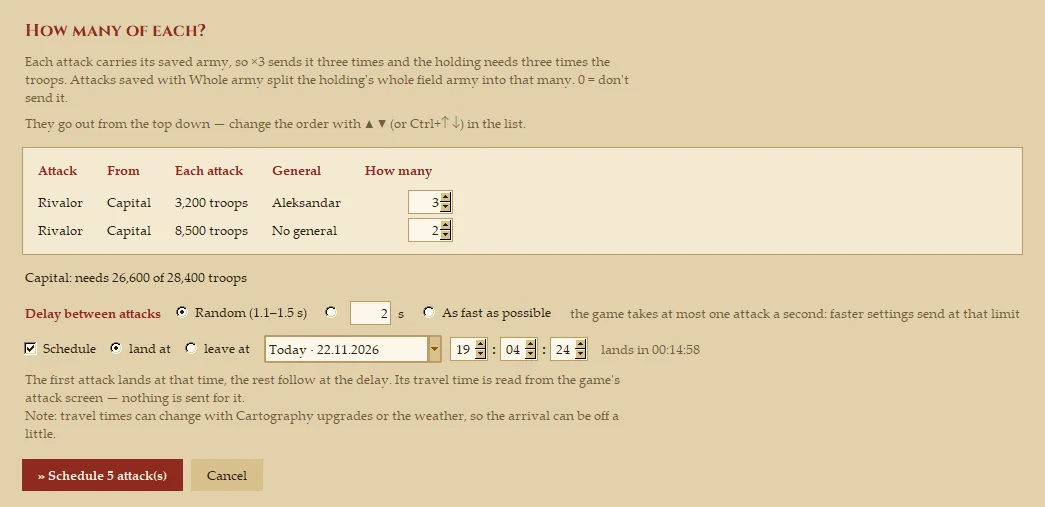
- A window asks how many of each to send and the delay between attacks: random, a number of seconds, or as fast as possible (one a second — the game's limit). Every attack carries its saved army, so three of one attack need three times the troops; the window shows what each holding needs. If a general is busy, the next one down leads.
- Schedule
- Off unless you tick it. Land at: the date and time the first attack should land; the rest follow at the delay. Its travel time is read from the game's own attack screen, so nothing extra is sent. Leave at: when the first attack should be sent. Scheduled sends are listed in the Scheduled tab (Cancel stops one), carry on after Warden is closed and opened again, and leave the list once they've gone. Travel times can change with Cartography upgrades or the weather, so the arrival can be off a little.

Relocation
Move your army between your holdings — or the alliance army between the alliance's — one or many moves at once. The same three tabs as Attack Player: Saved relocations, New relocation and Scheduled.
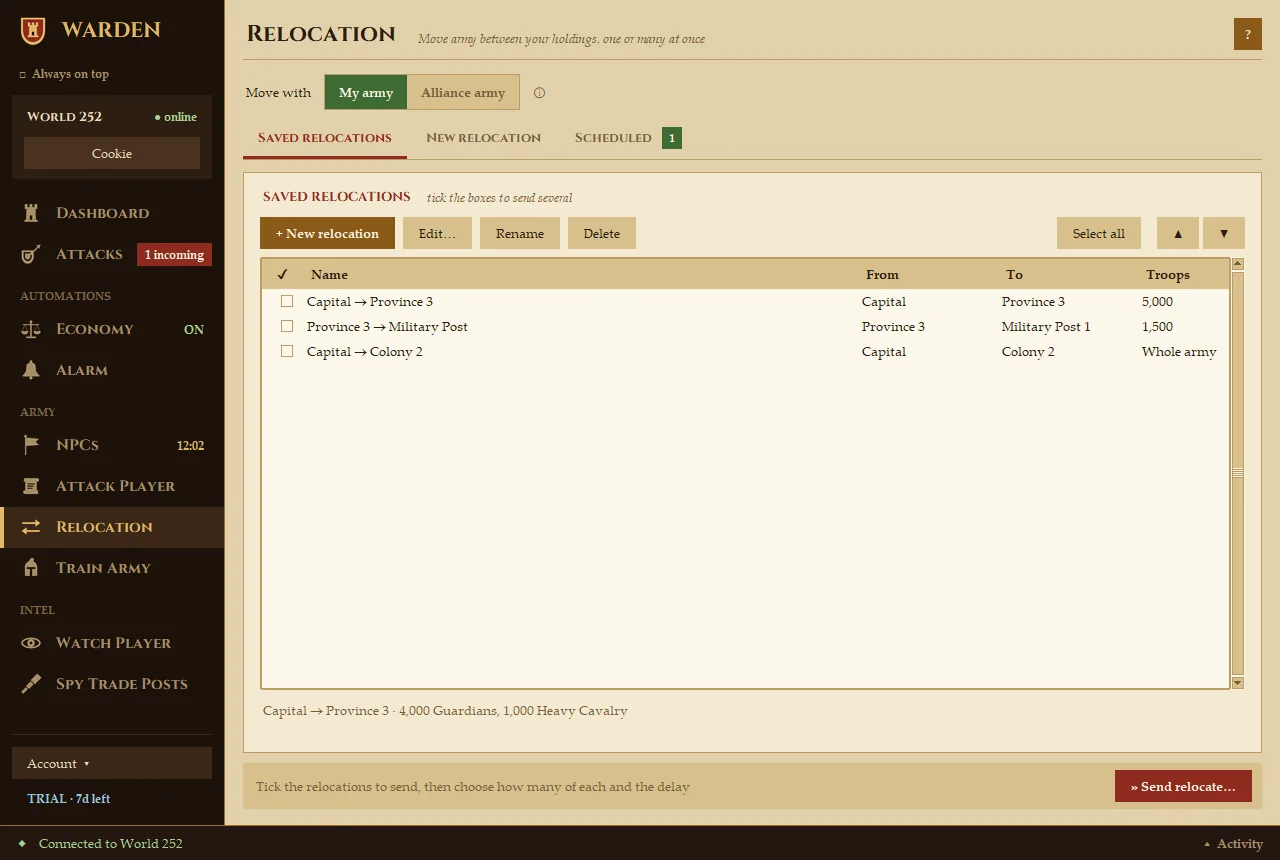
- Move with
- My army or Alliance army, each with its own saved relocations.
- + New relocation
- The route on top: the holding the army leaves (From) and the one it moves to (To). It moves onto the field of the To holding. Below it, the troops of one relocation: All army, Clear army, each unit by hand, or Whole army when sent. Press Save relocation.
- Saved relocations
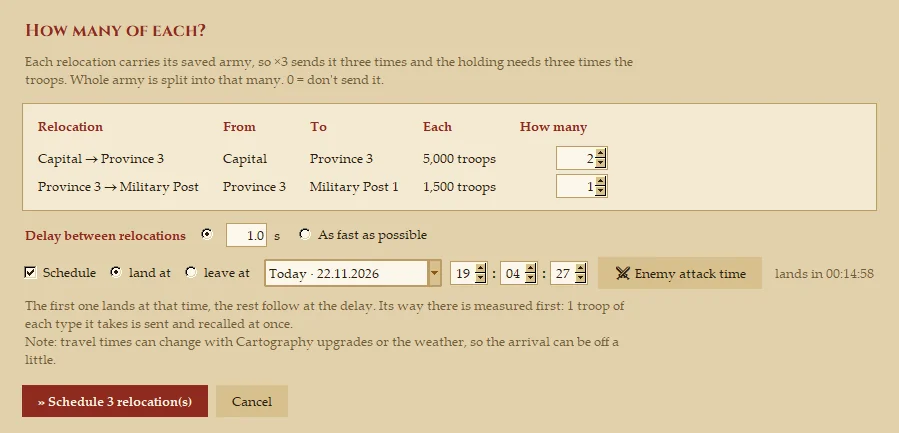
- Tick the ones to send and press Send relocate: choose how many of each and the delay between them — a number of seconds (1 by default) or as fast as possible. Stop ends a send early. To change one, select it and press Edit… (or double-click it).
- Schedule
- Land at: the first move lands at the time you pick; its travel time is measured first by sending 1 troop of each type and recalling it at once. Leave at: it's sent at that time (nothing is measured). Enemy attack time fills in when the next attack on the To holding lands, so your army arrives with it.

Train Army
Train or upgrade as much as possible in many holdings with one press.
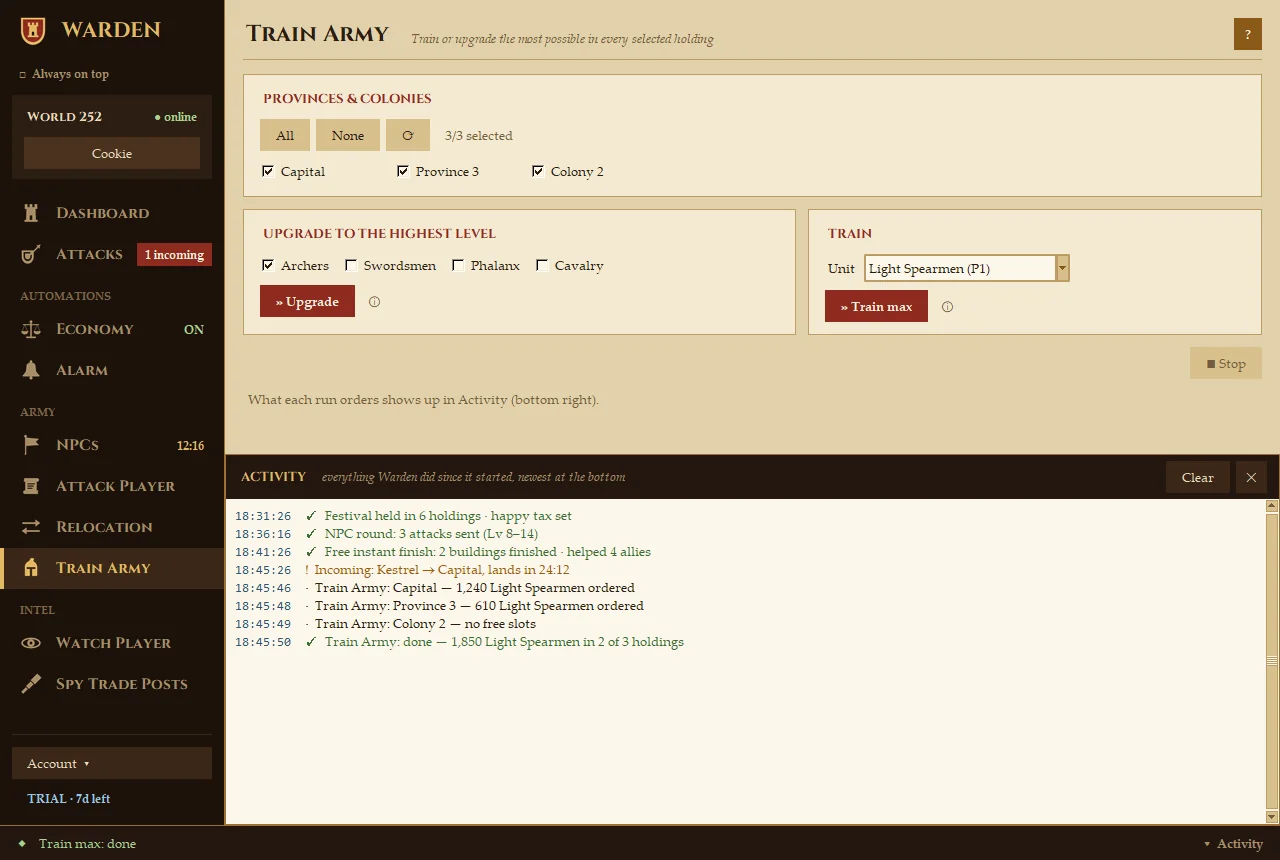
- Provinces & colonies
- Tick the holdings to work on. Use All / None, and ⟳ reloads them.
- Upgrade
- Turns every lower level of the ticked unit types (archers, swordsmen, phalanx, cavalry) into the best one you've researched.
- Train max
- Trains as many of the chosen unit as free slots and resources allow.
- Stop
- Ends a run early. What each run ordered shows up in Activity.

Watch Player
See when a player's net points last changed — a sign they are online right now.
- Watch Player: ON / OFF
- Top right, and on the Dashboard: turns watching on or off for every watched player at once. OFF pauses them all and keeps the list.
- Player
- Find any player of the world (also outside your points range) and press Watch this player (or Stop watching this player). While Watch Player is ON, their points are read every 30 seconds; nothing is sent.
- Watched players
- When each one's points last changed, by how much, and when they were last checked. Double-click a player to look up their holdings on the Attack Player page.

Spy Trade Posts
Send spies to every trading post of the players you watch — or of every player of the world — and see what each post holds.
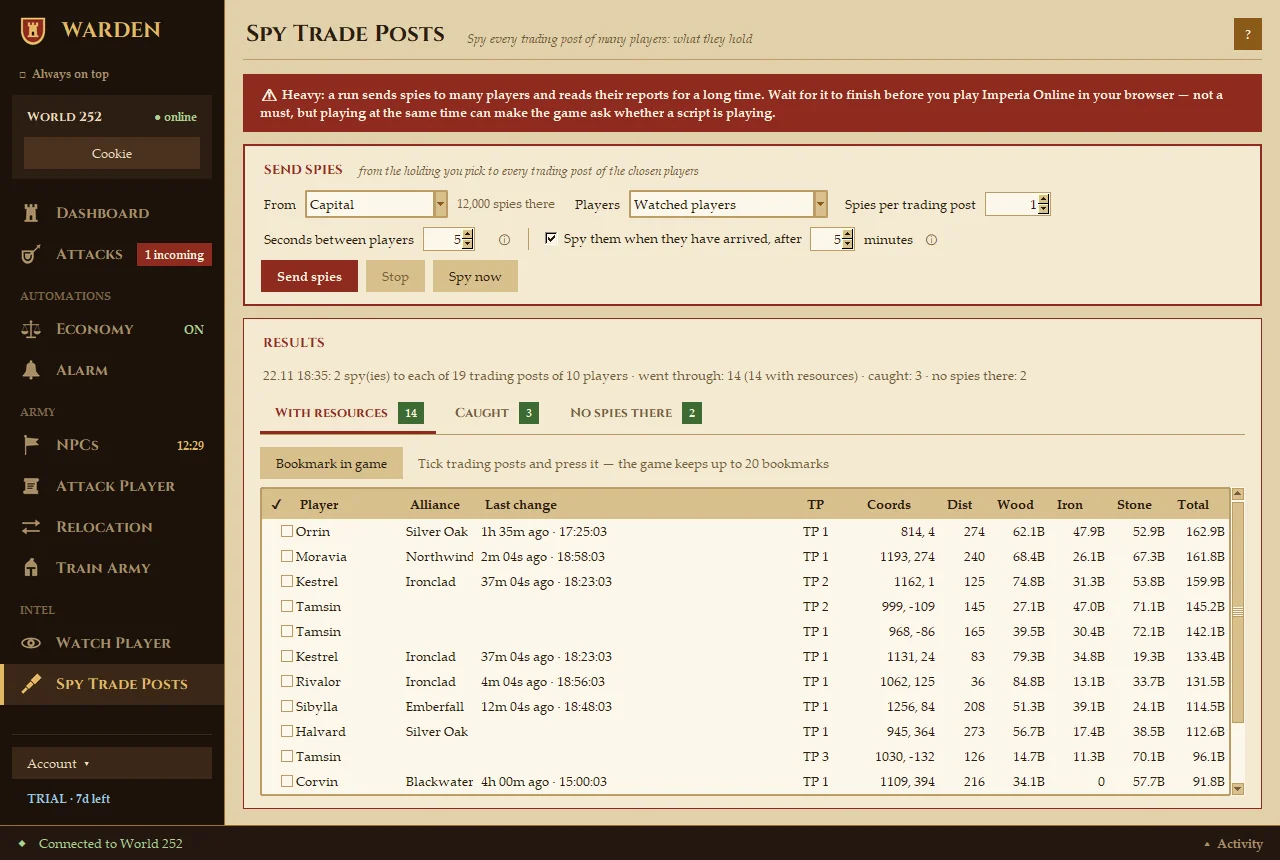
- Players
- Watched players (the ones on Watch Player) or All players of the world. Each run first scans the whole map for their trading posts (it only reads the map). You and your alliance are left out.
- From
- The holding the spies leave from — any of yours, the Capital to begin with. Next to it: how many spies it has. The distances in the results are from this holding.
- Spies per trading post
- How many spies go to each post. A run sends to as many players as the holding has spies for.
- Seconds between players
- One request per player, this far apart. Don't go too fast: sending quickly makes the game ask whether a script is playing.
- Spy them when they have arrived
- When ticked, the game's Infiltrate all is pressed for each player after the minutes you set. Spies that haven't arrived by then show under No spies there: press Spy now later.
- Send spies · Stop
- Starts a run, or ends it early. The last run is kept for each world, also when you close Warden halfway.
- With resources
- The posts that hold any resources, biggest first: player, alliance, when the player's points last changed (for watched players), the post, its coordinates and distance, and wood, iron, stone and the total (trading posts can't hold gold).
- Caught · No spies there
- Posts whose spies were killed, and posts where no spies had arrived yet.
- Bookmark in game
- Tick posts in With resources and press it to find them on the game's map (the game keeps up to 20 bookmarks).
Licence & subscription
Everything happens in the Licence & account window: click the licence badge at the bottom-left.
- Free trial
- 7 days, no card, starting the first time Warden connects to the game (not when you install it). The window shows the days left and the exact date and time it ends.
- Warden Free
- When the trial ends, Warden keeps running as Warden Free: the phone attack alarm keeps working, for as long as you like. Everything else waits until you subscribe or enter a key. Your settings, saved attacks and timers are kept.
- Subscribe
- Monthly · €5.99 / month or Yearly · €49.99 / year · save 30%. You pay on Stripe's secure page, and Warden turns Pro by itself a few seconds later. Subscribing during the trial keeps your remaining free days: the first charge is when they run out.
- Your licence key
- It's e-mailed to you after paying. You only need it on another PC: badge → Enter licence key…. Copy licence key copies it from the PC that's already Pro.
- PCs and your account
- Use Warden on as many PCs as you like. Warden Pro links to your Imperia Online account and works in all of its worlds, even where your player has another name. It's linked the first time Warden connects, and the window lists your players per world. To link another account: log in with that account in your browser, enter one of its worlds and press Connect Warden in the Warden Connect extension; Warden asks before it moves your licence. Without the extension: Change account… and copy that account's cookie (the same steps as connecting). You can change it whenever you like: Warden works on one account at a time.
- Manage or cancel
- Badge → Manage subscription… (or the Account page with your key) to change plan, update your card, get invoices or cancel. Warden keeps working until the end of the period you paid for.
- Updates
- When a new version is out, the badge says · update. Badge → Update to Warden …, or Check for updates.
Troubleshooting
- "The last session has expired"
- Your browser session ended. Copy a fresh PHPSESSID (Connect, steps 1–5), or log in with your password.
- "Windows protected your PC"
- Click More info → Run anyway. Windows shows it for new apps.
- Logged out at night
- Turn on Stay logged in on the Alarm page and save your password in the account menu, so Warden can log back in.
- The phone doesn't ring
- Press Test alarm in Phone settings. On Android check Override Do Not Disturb; on iPhone the alarm follows the ring/silent switch, unless you ticked Ring even in silent mode and turned on Critical Alerts for Bark.
- Nothing happens
- Automations turn back on only once Warden is connected to that world, and a new world starts with everything off. Check the switches on the Dashboard and the status bar at the bottom.
- Lost licence key
- Get it e-mailed again on the Account page.
- Still stuck?
- E-mail .